Connect & read robot status
Complete the hardware connections and choose the matching software first. This procedure establishes communication and reads status; it does not command motion.
Connect Marvin Platform
- Start the Marvin Platform version supplied for your controller.
- Connect the computer to the integrated control box and give it an address on the robot's
6.6.7.xnetwork. See Connect your PC. - Enter the motion controller's IP,
6.6.7.190by default. - Select Connect Robot and inspect the live feedback.
The September software guide's example address, 192.168.1.190, belongs to the standalone Marvin arm controller. If your unit was configured with a different address, use the one recorded for it.
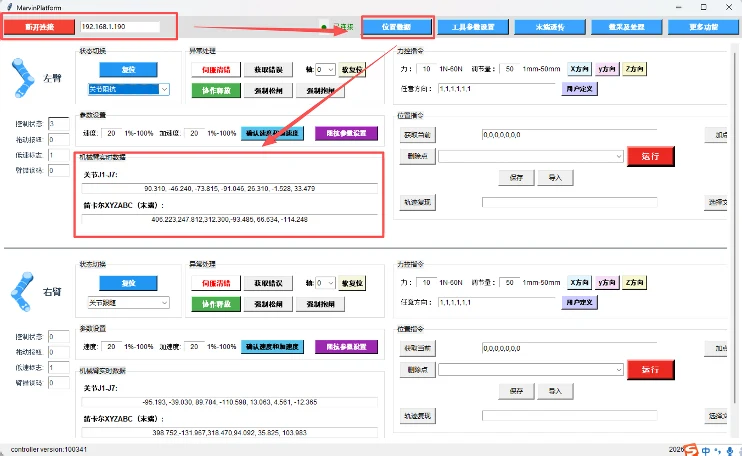
Confirm live feedback
The software guide notes that UDP communication does not directly return a connection-success flag: verify that fresh feedback is arriving. A stationary arm may have unchanged positions; inspect the stream and other live feedback rather than commanding motion to test the connection.
For disabled, stationary arms, the manual describes control state 0, drag-button state 0, low-speed flag 1, and arm error code 0. Check both arms.
If the connection fails
Check power, Ethernet connections, the configured controller IP, host network settings, and the firewall. Connect your PC has a troubleshooting table. For the SDK family in the Pro V1.0 manual, the documented UDP port range is 50000–50010; verify it against your installed package before changing firewall rules.